Store Design · Tutorial
How to add a sticky Add to Cart button
Add a sticky add to cart bar to a Shopify product page, choose what it carries, and measure whether the bar actually earned its screen space.
By Sonam Patel, CEO & Co-Founder9 min read
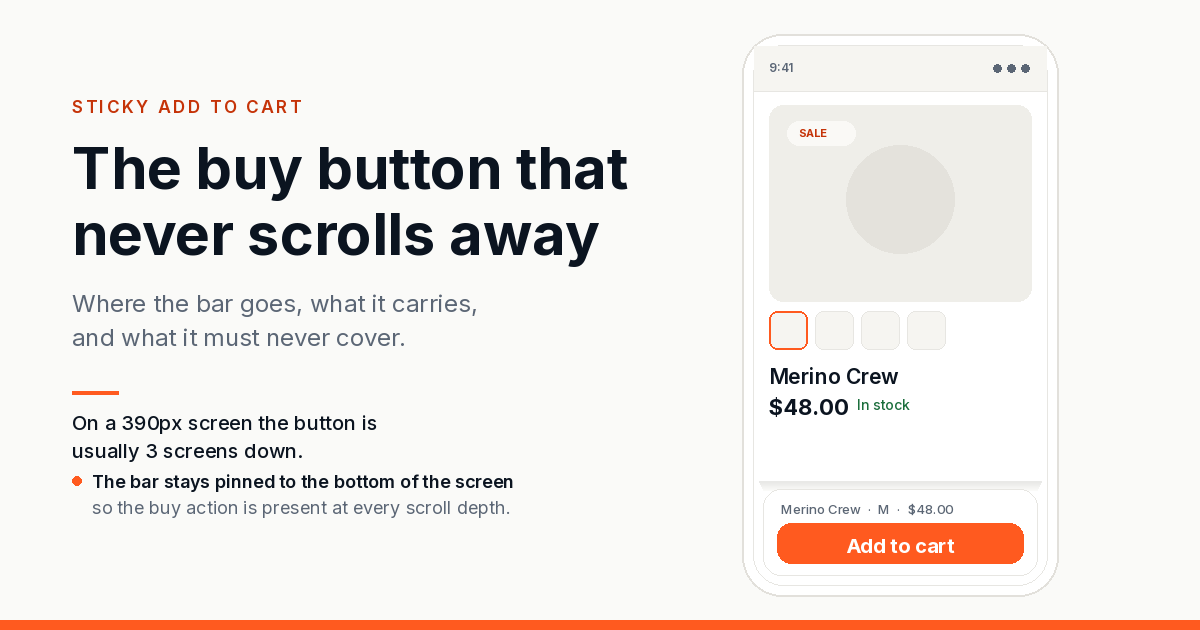
A sticky add to cart bar keeps the buy button on screen after the shopper scrolls past it. On a long product page it is the difference between a decision made at the reviews section and a decision that requires scrolling back up, and on a phone it costs the shopper a second trip to the top of the page when the button is out of reach.
This is the setup walkthrough: where the bar goes, which controls belong on it, what it should never cover, and how to tell whether it earned its place.
What the bar is doing, mechanically
A standard product page places the add to cart button once. Everything below that point, the description, the size table, the reviews, the cross-sell, is read without a visible buy action. When a shopper finishes reading and is finally persuaded, the button is several screens away.
The bar fixes that by appearing after the shopper passes the original button and staying until the page ends. It carries a compact version of the buying controls: price, variant, quantity and the button itself.
Two things follow, and both matter for the design. First, the bar is a repetition of an action that already exists, so it must never contradict the state of the page. Second, it occupies screen that the shopper was using for reading.
Before you switch it on, check three things
How far down the buy button sits. On mobile, measure the scroll distance from the top of the page to the add to cart button. If shoppers reach it without scrolling, the bar adds little. If the button is below the fold on a 390 pixel viewport, which is common on themes with a large gallery, the bar is doing real work.
How long the page is. A page with three paragraphs and no reviews does not need a persistent bar. A page with a size guide, a materials section, shipping detail and forty reviews does.
Whether the page already has a competing fixed element. A sticky header, a cookie banner, a chat bubble and a discount popup all want the same edges. Add a bar to that pile and the product page turns into a stack of overlays.
Step one: add the block to the product template
On an Online Store 2.0 theme the bar installs as an app block, which means you place it from the theme editor without editing theme files.
- Open the Shopify admin and go to Online Store, then Themes.
- On your live theme, click Customize.
- Use the page selector at the top to open a product template, for example Default product.
- In the left sidebar, scroll to the Product information section and click Add block.
- Find the app block for the sticky bar in the list and add it.
- Drag it inside the section so it inherits the section layout rather than sitting outside it, then Save.
If the block does not appear in the list, the app has not finished installing or the theme is not Online Store 2.0. Shopify's documentation on theme app extensions covers how app blocks are exposed, and the theme structure guide explains sections and blocks if you need the underlying model.
Older themes without blocks need a manual snippet. The Shopify theme customisation help is the reference for that path, and any app worth installing will give you the snippet to paste.
Step two: decide when it appears
The scroll trigger is the setting most stores get wrong in both directions.
Set the bar to reveal on scroll past the main buy button when the page is long. Set it to appear immediately when the page is a single-screen layout, because a bar that fades in after a tiny scroll looks like a glitch.
A reveal with no transition reads as content jumping. A reveal with a slow transition delays the button exactly when the shopper wants it. A short fade or slide of around 150 to 200 milliseconds is enough to explain the change without becoming an animation.
Step three: choose what the bar carries
Every control you add takes horizontal space from the button. On a 390 pixel screen the budget is tight, so prioritise.
Essential: the button, the price, and one way to change variant.
Worth it on fashion and footwear: the variant picker, because the size decision often gets made at the size table further down the page and the shopper should not have to scroll back to apply it.
Worth it on consumables and gifting: a quantity stepper, since buying four of something is common and a trip back to the quantity field is friction at the worst moment.
Usually not worth it: a compare-at price, a stock counter, payment icons and a discount field. Each one is a small element that shrinks the button, and none of them is the reason the shopper is on the page.
The bar should also mirror live state. If the shopper picks a size in the page, the bar shows that size. If the variant is sold out, the bar says so rather than offering a button that fails at the cart.
Step four: position it so nothing is buried
A bottom bar is the standard on mobile because it lands inside thumb reach. A top bar suits desktop where the cursor is already near the top.
Two positioning details are easy to miss:
Bottom padding on the page. The bar floats over content, so the last element on the page needs enough bottom padding to clear it. Otherwise the final line of the reviews section sits permanently behind the bar.
Safe area on newer phones. Devices with a home indicator reserve a strip at the bottom of the viewport. CSS exposes it as an environment variable, so padding the bar with env(safe-area-inset-bottom) keeps the button clear of the indicator. The MDN reference for env() covers the syntax. Without it, the button on an iPhone sits under the gesture bar and taps get swallowed.
What to keep out of the bar
A second add to cart that fires independently. The bar and the page button must post the same variant, quantity and selling plan, or a shopper ends up with the wrong item. Testing this properly means adding from the bar, opening the cart, and confirming the line item matches what the page showed.
Anything that blocks the page. Bars that expand into a full panel on scroll, or that cannot be dismissed, cost more attention than they return.
Text that changes on every scroll. A bar that cycles through messages reads as an advertisement rather than a control.
An unlabelled icon button. If the bar collapses to a cart icon on small screens, the accessible name has to survive. A button with no accessible label is invisible to a screen reader.
Reading the numbers afterwards
Two weeks of session data is enough to answer one question: did shoppers who reached the bottom of the page add to cart more often than they did before the bar existed.
Compare the add to cart rate for sessions that reached 75% scroll depth, before and after. Comparing the whole store is misleading, because the bar only touches shoppers who went that far.
Then look at the bar's own click rate against the page button's. If almost nobody uses the bar, the trigger is too late or the bar duplicates something already visible. If the bar gets used heavily but add to cart does not move, the bar is capturing clicks that were going to happen anyway, which is harmless but not the win you are looking for.
Worth holding in view: Adobe's 2026 forecast puts 63% of Thanksgiving online spend on mobile. Any control that only works on desktop is working for a minority of the traffic.
Where this fits with the rest of BFCM prep
A sticky bar is a low-risk change and a good candidate for the early test window. It does not touch pricing, discounts or fulfilment, so it can ship without disturbing anything already frozen for the sale.
Test it in the first week of November and either keep it or turn it off before the freeze. If it is still being argued about on 20 November, it is not ready. The BFCM discount math post has the full calendar counted back from 27 November.
If the product page itself is the weaker surface, the PDP builder is the bigger lever, and a sticky bar is the smaller one on top of it.
Frequently asked questions
Does a sticky add to cart bar work with any Shopify theme?
It works on any Online Store 2.0 theme because it installs as an app block placed from the theme editor. Themes built before blocks existed need a manual snippet instead, and any app that supports them will supply one.
Should the sticky bar be on mobile only?
Start with mobile if most of your traffic is mobile, since that is where the scroll distance is longest. Enabling both is fine, but desktop usually needs a different position and a less prominent treatment, because the cursor does not have the same reach problem a thumb does.
Will a sticky bar slow down my product page?
It should not, if the bar renders as part of the product template rather than as a separate widget injected after load. A widget that arrives late causes the page to shift, which is worse than the delay itself. Check with a throttled connection before you trust it.
Can I use it to go straight to checkout?
You can swap the add to cart action for a buy now action, or show both. Buy now shortens the path for a decided shopper, but it also removes the cart step where some shoppers reconsider, so test it rather than assuming.
Adding the bar is a twenty minute job. Deciding whether it earns its screen space is the part that takes two weeks of data.
If you want it set up and measured for you, we do that.